
Introduction
Using an Apple Trackpad with a Windows computer enhances your experience with smooth gestures and precision controls. This guide will help you set up and optimize your Apple Trackpad on Windows, enabling a seamless integration between the two systems. Elevate your computing by unlocking the potential of Apple’s renowned hardware in a Windows environment.
Setting Up Apple Trackpad on Windows
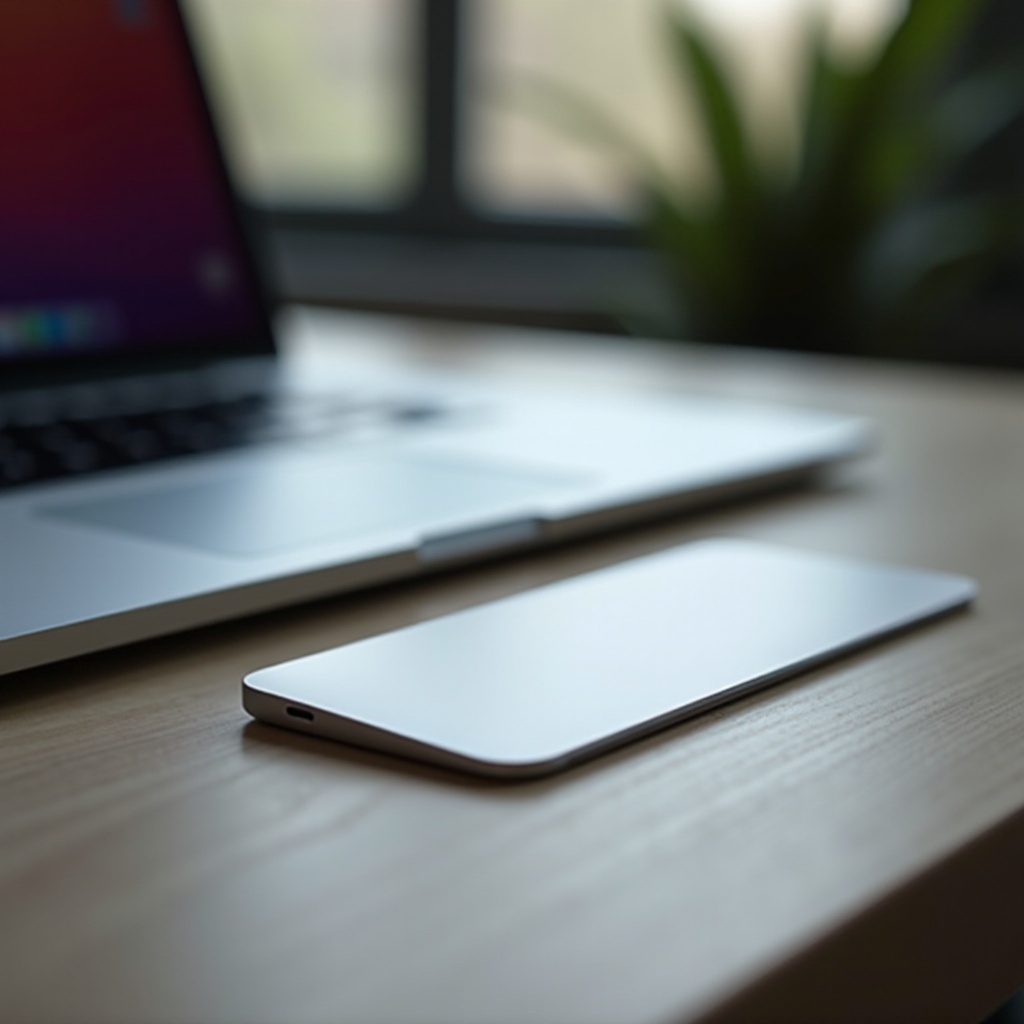
Setting up your Apple Trackpad on Windows begins with ensuring you have the necessary components: an Apple Trackpad, a Windows PC with Bluetooth or a USB connection for pairing, and the required cables (USB-C or Lightning).
Start by enabling Bluetooth on your Windows PC. Connect the Apple Trackpad via cable for initial pairing, or use wireless mode. Download essential drivers using Boot Camp or third-party software such as Magic Utilities to enable full functionality. Finally, pair the trackpad through Windows Bluetooth settings by selecting the device from the list of available connections.
Once successfully paired, you can explore the full set of Apple gestures on your Windows device. However, installing the right drivers is crucial for detailed configurations.
Installing Drivers for Full Functionality
Drivers are vital in bridging hardware and software functionality. Without them, many trackpad features remain inaccessible. You can easily install drivers through Boot Camp, available on Apple’s website, or alternatively use Magic Utilities for a simplified installation process offering routine updates and enhanced compatibility.
Installing these drivers activates advanced gestures like pinching, swiping, and rotating, thereby greatly enhancing interaction with your Windows system.
Configuring Trackpad Settings on Windows
Customizing trackpad settings enhances comfort and efficiency. Start by navigating to Windows settings for pointers and touch devices. Here, you can adjust pointer speed to your preference for precision, fine-tune sensitivity levels to prevent unintentional gestures, and configure multi-finger gestures for easy navigation, scrolling, and zoom.
With these configurations, your trackpad is fine-tuned for everyday tasks and optimized for your specific workflows. Yet, some troubleshooting may be necessary if issues arise.
Troubleshooting Common Issues
Although Apple Trackpads are reliable, occasional issues can impact productivity. Here’s how to resolve common concerns:
- Solving Connectivity Issues: Check that Bluetooth is enabled and the device is within range. If problems persist, restart both the trackpad and the computer.
- Handling Gesture Recognition Problems: Update or reinstall drivers if gestures are unresponsive. Verify and adjust gesture settings in the configuration panel.
- Addressing Common Errors: For cursor lag, check for interference from other Bluetooth devices and reinstall Bluetooth drivers if necessary.
Having resolved these potential stumbling blocks, you can focus on optimizing performance and gesture customization for an unparalleled user experience.
Optimizing Performance and Custom Gestures
Enhancing your trackpad’s utility involves tweaking both software and hardware settings:
- Calibrating Sensitivity and Speed: Use Windows’s mouse properties to adjust motion settings for optimal responsiveness.
- Enhancing Battery Life and Connectivity: Turn off Bluetooth when not in use and keep firmware updated. For wireless trackpads, use high-quality, long-lasting batteries.
- Using Third-party Programs for Advanced Features: Employ applications like BetterTouchTool for advanced gestures. These third-party programs offer custom gesture mapping, providing application-specific controls and extended functionality beyond default settings.
Implementing these strategies ensures a seamless experience with your Apple Trackpad on Windows.
Conclusion
Merging an Apple Trackpad with a Windows setup blends refined hardware with diverse software capabilities. By setting up and optimizing your trackpad according to the steps provided, you achieve maximum efficiency and a rich user experience. Whether you’re navigating extensive documents or browsing multiple windows, personalized settings and optimizations make navigation intuitive. Embrace the synergy of Apple’s design with Windows functionality for unmatched precision and productivity.
Frequently Asked Questions
Can I use my Apple Trackpad with any Windows PC?
Yes, as long as your Windows PC has Bluetooth capability or a USB connection.
What software ensures the best trackpad performance on Windows?
Boot Camp or Magic Utilities are recommended for comprehensive driver support.
How do I fix gesture delays on my Apple Trackpad in Windows?
Regularly update drivers and adjust motion settings in mouse properties to improve responsiveness.