
Introduction
Changing your App Store country on iPhone can grant you access to region-specific content, a necessity for those traveling or relocating. Whether it’s to explore a different app selection or to accommodate a new residence, the process should be hassle-free. This comprehensive guide outlines each step, from preparation to post-change adjustments, ensuring you’re properly equipped for the transition. Prepare for a seamless switch with insights on pre-switch preparations, the step-by-step process, troubleshooting, and optimization tips.
Preparing for the Change
Before initiating the country change on your iPhone, a few preparatory steps are crucial. By addressing potential hurdles beforehand, you will prevent disruptions to your device or app usage.
-
Backup Your iPhone: Start with a complete backup of your device. Use iCloud or connect to a computer to safeguard your data, which is especially vital before making such significant alterations.
-
Review Subscriptions and Payments: Evaluate your current subscriptions, cancel those that face regional restrictions, and ensure your new location supports your payment methods. Implementing this will avert billing disruptions post-switch.
Once these steps are taken, you are ready to begin the alteration of your App Store settings. Proceeding with these precautions will provide a smoother transition when changing country settings.
Step-by-Step Guide to Changing Your Country
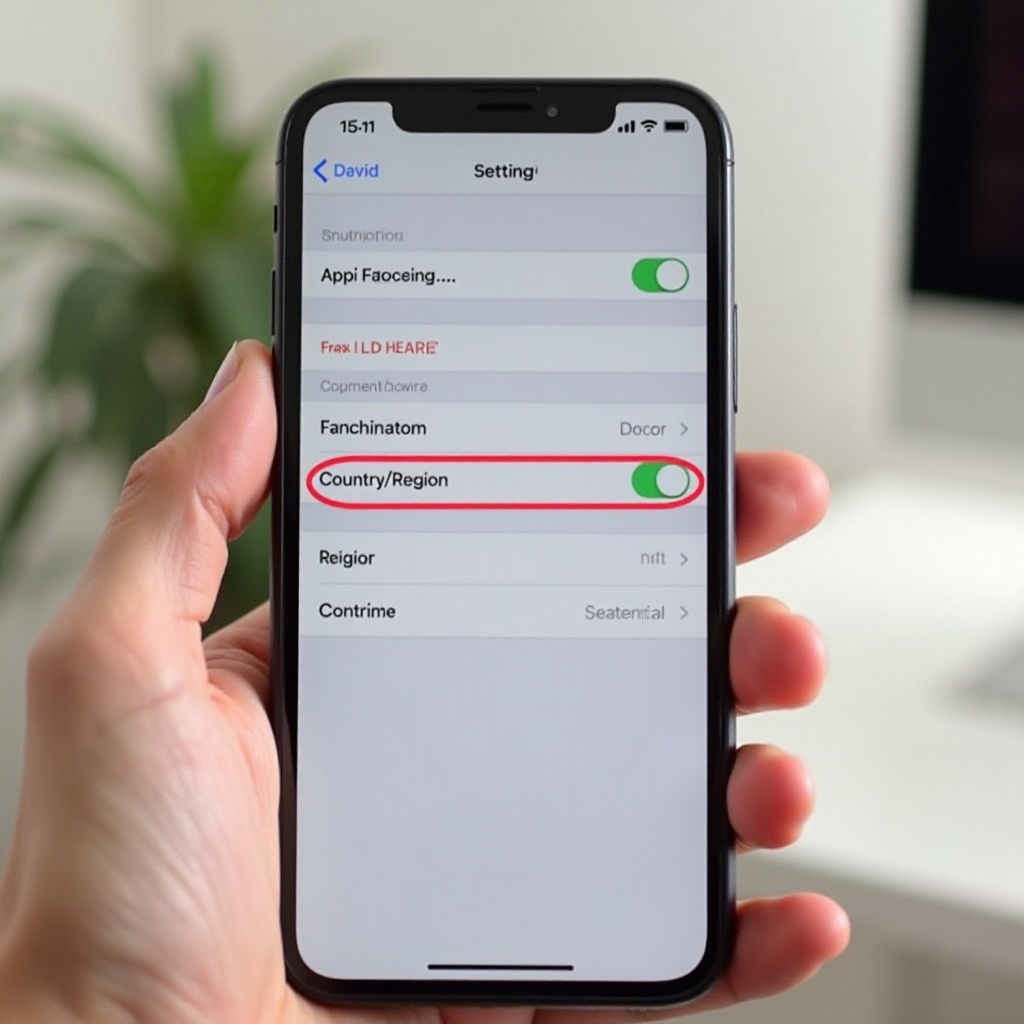
To modify your App Store country settings, adhere to these straightforward instructions, ensuring you retain access to important apps and services:
-
Open the Settings App: Launch your iPhone’s Settings app to begin the process.
-
Access Your Apple ID: Tap your name at the menu’s top to access Apple ID settings.
-
Select Country/Region: Scroll to ‘Country/Region’ and choose to change it.
-
Choose New Country and Enter Payment Information: Pick your new country. Enter a payment method valid in this new region, which could include a local card or applicable alternative.
-
Confirm and Accept Terms: Agree to new terms for the selected country. This acceptance confirms your setting change, unlocking region-specific features.
Completion of these instructions allows access to your desired region’s App Store. Nevertheless, common issues may arise, which we’ll explore and resolve in the following section.
Common Issues and Troubleshooting
Despite following instructions, users might face obstacles during the transition. Awareness and troubleshooting ensure a smooth switch.
-
Address Verification Problems: Ensure your address matches your payment method’s billing details. Verification requires correct, consistent information.
-
Invalid Payment Method Resolution: Encountered card issues? Verify compatibility with the new region. Adding an alternative card or using Apple ID balance can rectify this.
Having strategies for these common problems allows continued App Store access without disruption. Once resolved, it’s time to optimize your new App Store experience.
Post-Change Adjustments
Now that you have successfully changed your App Store country, make some adjustments for an optimized experience.
New App Availability: Explore apps now available in your new region. Frequently used apps might offer updates or localized features worth discovering.
Handling App Updates: Ensure apps are up to date with the latest regional versions, enhancing functionality and compatibility.
These adjustments are crucial for maximizing region-specific content, ensuring the iPhone meets your needs in the new setting.
Tips and Tricks for a Smooth Transition
For continued convenience and flexibility, consider these tips and tricks:
-
Using Multiple Apple IDs: If you’re often switching between locations, different Apple IDs for each region might be beneficial. This enables access to varied marketplaces without frequent changes.
-
Region-Specific Content Management: Regularly monitor your subscriptions for compatibility, adjusting as required.
These strategies enable you to efficiently manage regional settings, facilitating seamless transitions between locales.
Conclusion
Effortlessly changing your iPhone’s App Store country setting optimizes app access and usage. By preparing adequately, executing necessary steps, and utilizing troubleshooting strategies, you remain connected to vital apps while discovering new regional content. Update payment methods and personalize settings to suit your new environment. Embrace the digital freedom that comes with exploring international app landscapes.
Frequently Asked Questions
Can I switch back to my original country after changing it?
Yes, follow the same steps and change your country back in the App Store settings.
Will I lose access to my purchased apps if I change countries?
No, you should still have access, but app availability may vary in your new region.
How often can I change my country in the App Store?
There is no official limit, but frequent changes could raise verification issues.