
Managing apps on your Samsung tablet is essential for maintaining its performance and ensuring you have enough storage space. Apps that you no longer use can accumulate and slow down your device. By learning different methods to delete apps on your Samsung tablet, you can free up space and keep your tablet running smoothly. In this guide, we’ll explore various methods to remove unwanted apps.
Reasons to Delete Apps on a Samsung Tablet
Removing unused apps from your Samsung tablet is crucial to keep it running efficiently. Here are several reasons why you should regularly delete apps:
- Free Up Storage: Apps occupy significant storage space. Uninstalling unused apps can free up this valuable space for other files or essential applications.
- Boost Performance: Fewer apps can lead to faster device performance and a more responsive user experience.
Understanding these benefits emphasizes the importance of effective app management on your device. Let’s delve into the methods for deleting apps.
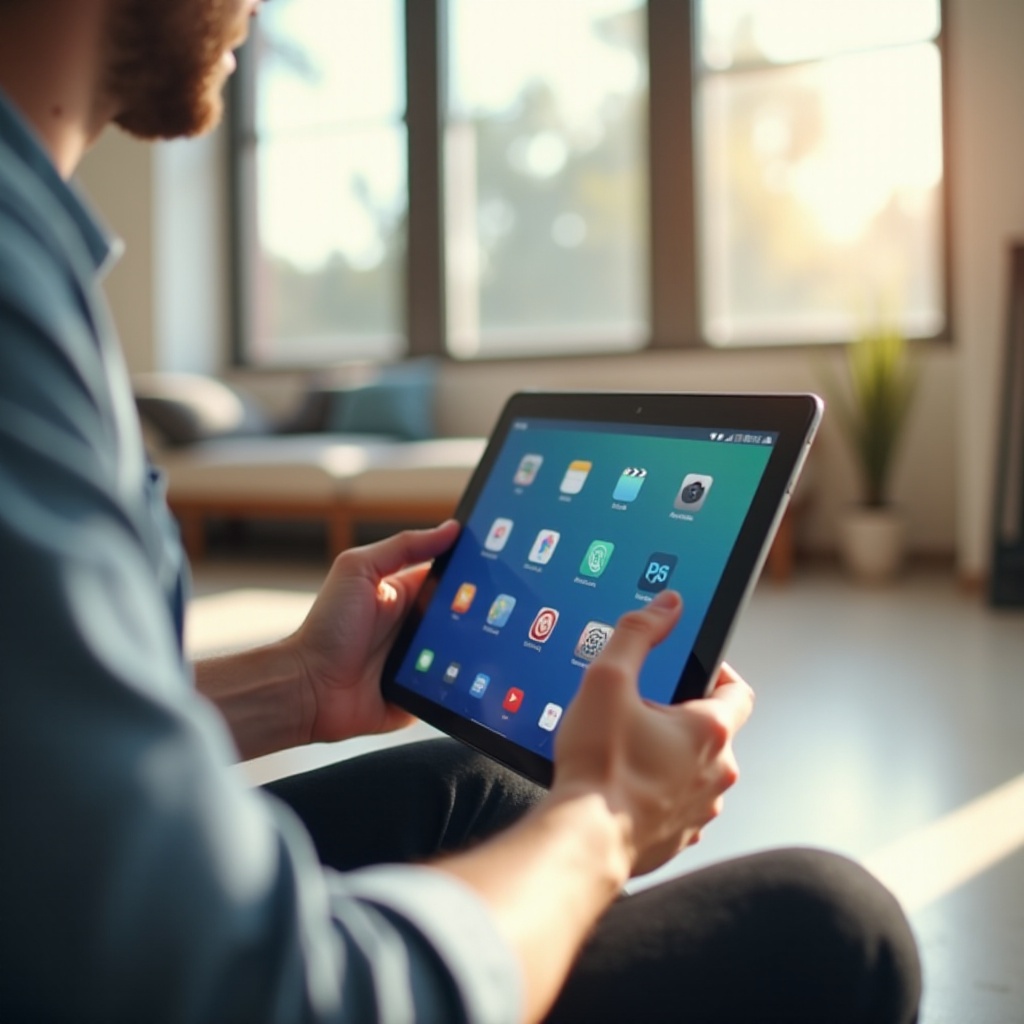
Methods to Delete Apps on Samsung Tablet
You can remove apps from your Samsung tablet in multiple ways, depending on your preference and the specific app you wish to delete.
Using the Home Screen
- Locate the App: Find the app you want to remove on your home screen.
- Press and Hold: Tap and hold the app icon until a menu appears.
- Select Uninstall: Choose ‘Uninstall’ from the menu and confirm your choice.
Via the Settings Menu
- Access Settings: Open the ‘Settings’ app from your home screen or app drawer.
- Navigate to Apps: Find and tap on ‘Apps’ or ‘Applications’.
- Select the App: Choose the app you wish to uninstall and tap it.
- Uninstall the App: Tap ‘Uninstall’ and confirm the action.
Through the Google Play Store
- Open Google Play Store: Launch the Google Play Store app.
- Access My Apps & Games: Tap your profile icon, then select ‘Manage apps & devices’.
- Find the App: Scroll to locate the app you wish to remove.
- Uninstall: Tap the app and select ‘Uninstall’.
Utilizing Samsung’s One UI Interface
Samsung’s One UI offers a user-friendly app management interface:
1. Open the App Drawer: Swipe up from the home screen to access the app drawer.
2. Long Press on App Icon: Press and hold the app icon until options appear.
3. Select Uninstall: Tap ‘Uninstall’ and confirm.
These methods provide flexibility in how you choose to manage and remove apps, ensuring your device remains efficient and clutter-free.
Managing Pre-installed and System Apps
Some apps come pre-installed, often referred to as bloatware. Identifying and managing them is important if you want to have more control over your tablet.
Identifying Bloatware
Bloatware refers to pre-installed apps by the manufacturer or carrier that you might not need. Review your list of apps and identify these to better manage your device.
Disabling vs. Deleting Apps
- Disabling Apps: If the app cannot be uninstalled, disabling is a great option. This stops them from running and hides them without complete removal.
- Deleting Apps: If the pre-installed app can be deleted, it will free up more space on your device.
A well-managed app list keeps your Samsung tablet running smoothly, providing a streamlined user experience.
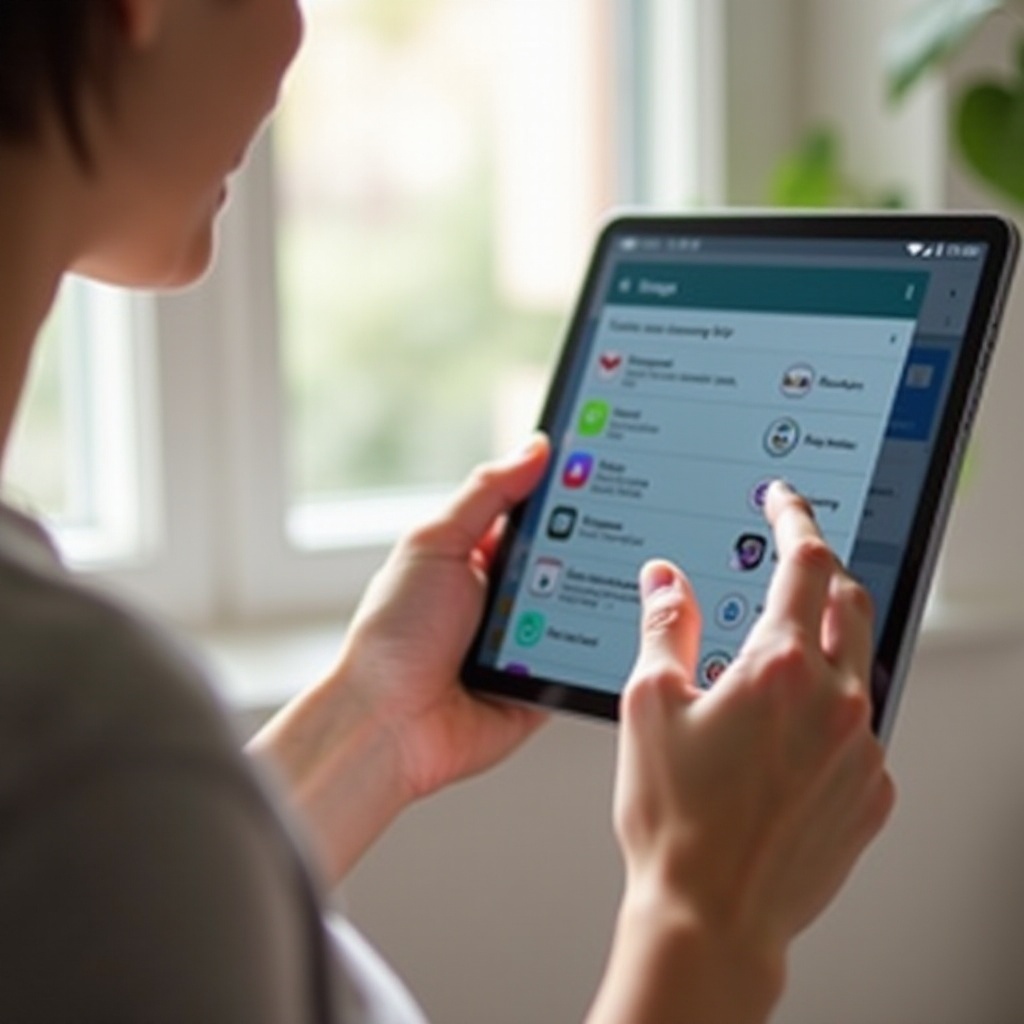
Troubleshooting Common Issues
Sometimes you may encounter issues when trying to delete apps. Here are solutions to some common problems:
Can’t Delete an App
If you’re unable to delete an app:
– Restart Your Tablet: Many glitches can be fixed by simply restarting the device.
– Check Settings Restrictions: Ensure that there are no restrictions applied under ‘Settings’ preventing app deletion.
Samsung Support and Updates
For persisting issues:
– Contact Samsung Support: Samsung’s customer service can provide solutions for persistent problems.
– Stay Updated: Regular software updates may include bug fixes that resolve deletion issues and improve performance.
Efficiently handling these issues ensures that your Samsung tablet remains in optimal condition.
Conclusion
Deleting unnecessary apps from your Samsung tablet is vital for optimal device performance and memory management. With the step-by-step methods provided, you can effectively manage your apps and address any resolved issues efficiently. Regular app maintenance ensures a smooth and responsive tablet, offering a better user experience.
Frequently Asked Questions
Can I delete built-in apps on my Samsung tablet?
Some built-in apps can be disabled but not deleted. Disabling stops these apps from running and hides them without complete removal.
What should I do if an app won’t delete?
Try restarting your device or ensuring there are no settings restrictions. For persistent issues, contacting Samsung Support might be necessary.
Is rooting my tablet necessary for app management?
Rooting a device can allow greater control but poses risks such as voiding warranties. It’s usually not necessary for standard app management.