
Introduction
For many Android users, the handwriting keyboard is a convenient tool, yet it may not fit everyone’s preferences. Traditional typing can often be more efficient or easier on an Android device. If you find yourself in this category, this guide is designed for you. Here, we will walk you through how to turn off the handwriting keyboard, offering clear instructions for various keyboard apps. Moreover, you’ll discover how these changes can enhance your overall typing experience.
Accessing Your Android Keyboard Settings
Disabling the handwriting keyboard begins with accessing your device’s settings. While steps may vary slightly depending on your device’s make and model, the general process is similar across Android devices.
- Unlock your device and open the ‘Settings’ app represented by a gear icon.
- Scroll down to find ‘System’ or, in some models, ‘Additional settings’.
- Click on ‘Languages & input’ to explore your keyboard settings.
Once inside the menu, you’re a step closer to managing input features and turning off the handwriting function.
Disabling Handwriting Input on Google Keyboard (Gboard)
With access to keyboard settings, focus on your specific keyboard app. If your default keyboard is Google Keyboard, also known as Gboard, follow these instructions to disable handwriting:
- Inside the ‘Languages & input’ section, tap on ‘Virtual keyboard’.
- Select ‘Gboard’ from the keyboard list.
- Navigate to ‘Languages’ within Gboard settings.
- Pick the language you’re using.
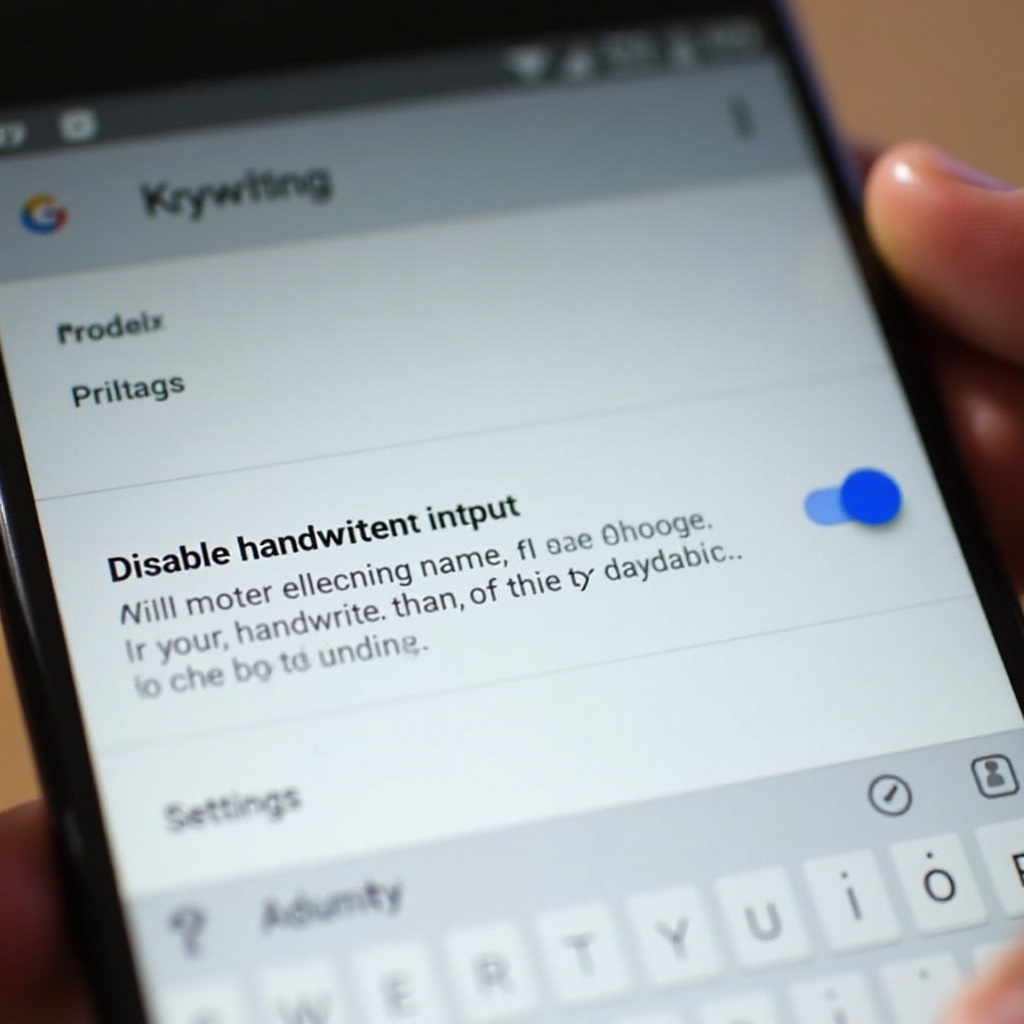
- Locate ‘Handwriting’ and toggle the switch off.
These actions will ensure that handwriting input is no longer part of your Gboard experience. The changes help streamline your typing, allowing for uninterrupted use of predictive text and other typing features.
Managing Handwriting Settings in Other Keyboards
If Gboard isn’t your default, you might use another keyboard. The good news is, most keyboards offer similar methods for adjusting input settings. Let’s go over popular alternatives:
Samsung Keyboard:
1. Go to ‘Settings’ and click ‘General Management’.
2. Select ‘Samsung Keyboard settings’.
3. Find handwriting input and toggle it off.
SwiftKey:
1. Access ‘Settings’ and then ‘Languages & input’.
2. Under ‘Virtual keyboard’, choose ‘SwiftKey’.
3. Navigate to ‘Typing’ and then ‘Keys’.
4. Turn off the handwriting option.
While the steps above apply to popular keyboards, others often follow similar paths to manage input preferences. Adjusting these settings can further tailor your Android typing experience.
Enhancing Your Typing Experience After Disabling Handwriting
With handwriting disabled, your keyboard interface simplifies, presenting an opportunity to enhance your typing efficiency. Here are several suggestions:
-
Voice Typing: Use voice typing for a hands-free experience. This feature is widely available on most keyboards, offering quick text dictation capabilities.
-
Customize Themes: Explore different themes to make your keyboard visually appealing. Many keyboards support theme customization, providing both function and style.
-
Enable Predictive Text: Make sure predictive text and autocorrect are active. These features learn your typing habits, offering smart text suggestions and reducing errors.
These optimizations not only increase efficiency but also make typing on your Android device more enjoyable, ensuring a seamless user experience.
Troubleshooting Common Handwriting Keyboard Issues
Occasionally, you might run into issues when attempting to adjust handwriting settings. If this happens, here are some troubleshooting steps:
-
Settings Won’t Apply: Ensure you hit ‘Save’ after changing any settings. Restarting your device may also help enforce these preferences.
-
Changes Aren’t Reflected: Clearing the keyboard’s cache can assist in applying new settings. Access ‘Settings’, find ‘Apps’, locate your keyboard app, and clear its cache.
-
Reverting Changes: To re-enable handwriting, retrace the same steps used to turn it off. Toggle the setting back on as desired.
Handling these issues helps ensure you maintain control over your device’s settings, allowing changes to persist effectively.
Conclusion
Disabling the handwriting keyboard on Android can refine your typing experience, offering more efficient and traditional input methods. Throughout this guide, we’ve outlined steps to access settings, adjust Gboard and other keyboards, and optimize your overall typing experience. By embracing features such as theme customization and voice typing, your Android communications can become both easier and more enjoyable. Feel free to explore and adapt these settings to best suit your needs.
Frequently Asked Questions
How can I switch back to handwriting if I change my mind?
Switching back is simple. Navigate to your keyboard’s settings, follow the same steps you used to disable it, and toggle the handwriting option back on. Ensure any changes are saved before you exit the settings menu.
Does disabling handwriting affect voice typing on my Android device?
No, disabling handwriting input does not affect the voice typing feature. These functionalities operate independently, allowing you to continue using voice dictation without any issues.
Why can’t I find the handwriting option in my keyboard settings?
The handwriting option may not be available if your keyboard app does not support it or if an update is required. Check your app store for updates or try using a keyboard app that offers handwriting as a feature.