Introduction
Imagine you’re deep into your workflow, with multiple tasks spanning across several screens, and then you notice: the taskbar icons aren’t showing up on your second monitor. This can be an unexpected disruption, turning a seamless multi-monitor setup into a source of frustration. Fortunately, resolving this common issue is possible. With the right strategies, you can address the root causes and restore the efficiency of your multi-monitor configuration. In this guide, we’ll delve deep into the reasons behind the missing taskbar icons and equip you with actionable solutions to reclaim your productivity.
Understanding the Taskbar Icon Display Challenge
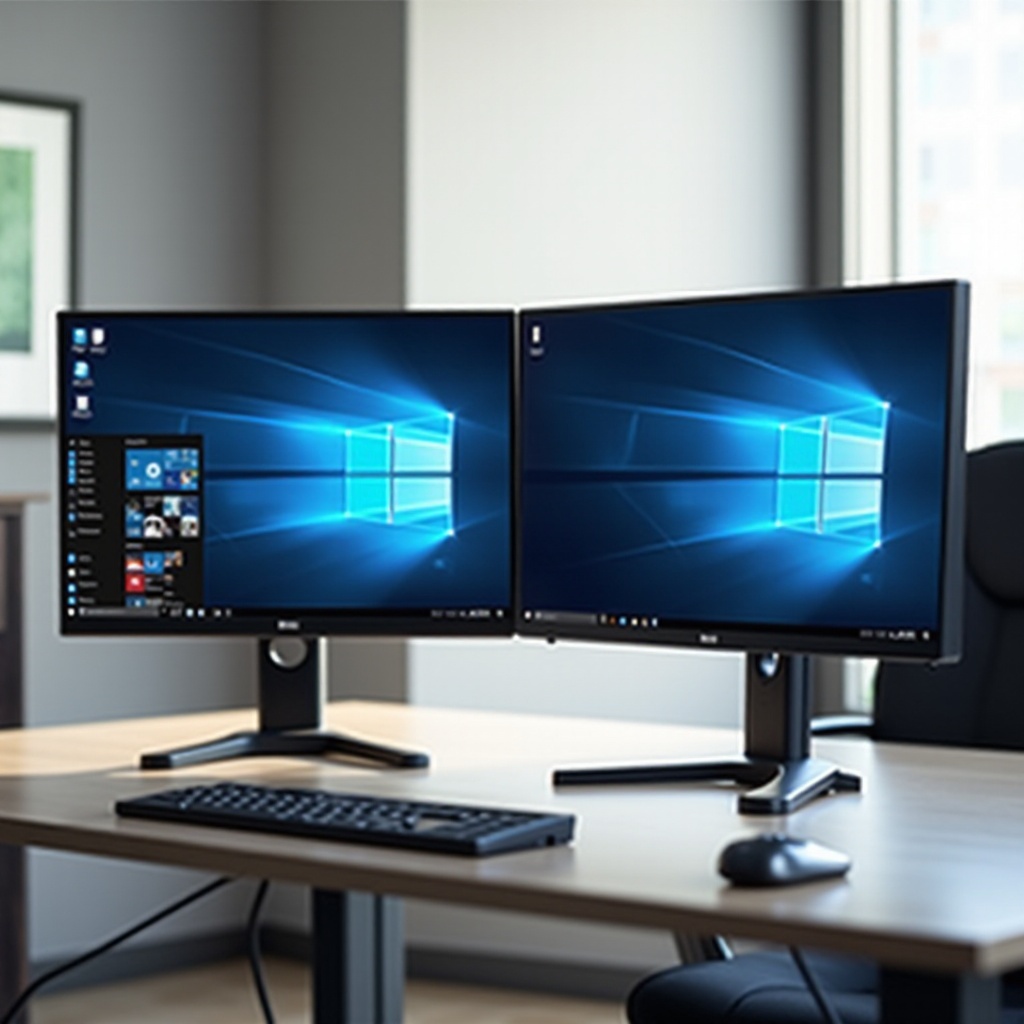
Multi-monitor setups are favored by professionals, gamers, and creatives alike for maximizing their workspace. However, this versatility can sometimes be marred by quirks, such as the taskbar icons vanishing from secondary screens. Such glitches not only momentarily halt your progress but also lead to longer delays as you struggle to access essential tools and applications.
Understanding the underlying causes of these disappearing icons can be crucial for swift resolution. Most often, the issue stems from incorrect display settings or potential bugs within the system. Outdated graphics drivers or software conflicts may also play a role, complicating the apparent simplicity of a multi-monitor setup. Let us break down these causes to better equip you in troubleshooting effectively.
Identifying the Common Causes of Missing Taskbar Icons
Several elements might lead to the absence of taskbar icons on secondary monitors. Recognizing these can help you zero in on solutions promptly:
-
Incorrect Display Settings: Windows might default to configurations that don’t promote taskbar extensions across multiple monitors.
-
Outdated Graphics Drivers: Drivers that have not been updated can frequently trigger display issues, with missing taskbar icons being a symptom.
-
Software Conflicts: Certain applications might interfere with taskbar operations or be incompatible with multi-monitor functionalities.
-
Defective Display Adapters or Ports: Physical connectivity problems can also affect the taskbar’s display on additional screens.
Armed with knowledge of these factors, addressing the problem becomes a more streamlined process, beginning with quick troubleshooting tactics.
Quick Fix Strategies for Immediate Relief
Before diving into more intensive solutions, these quick fixes can often resolve the issue of missing taskbar icons to get you back on track swiftly:
Checking Display Settings
- Navigate to Settings > System > Display and ensure every monitor is correctly identified. Opt for Extend these displays in the ‘Multiple displays’ section.
Restarting Windows Explorer
- Use
Ctrl + Shift + Escto launch Task Manager. Find Windows Explorer, right-click it, and select Restart.
Employing Keyboard Shortcuts
- By pressing
Windows + P, cycle through display settings. Select Extend to refresh your display configuration.
When initial strategies like these don’t work, it’s time to move on to more detailed solutions.
In-Depth Solutions for Persistent Taskbar Issues
When basic troubleshooting falls short, these comprehensive fixes often address the problem:
Correct Taskbar Settings Configuration
- Right-click on the taskbar and navigate to Taskbar Settings.
- Under Multiple displays, ensure the option Show taskbar on all displays is switched on. Tailor your preferences for button settings, such as All taskbars.
Updating Graphics Drivers
- Open Device Manager using the Windows search bar.
- Expand the Display adapters section.
- Right-click your graphics hardware and choose Update driver.
- Opt for Search automatically for updated driver software.
Checking and Configuring Display Adapters and Ports
- Examine the physical connections on your PC and monitor.
- Try switching ports or using an alternate adapter to exclude hardware issues.
- Consider a different cable if display inconsistencies are frequent.
These detailed troubleshooting methods should resolve most persistent problems with taskbar icons on external monitors. Keep in mind that after implementing these solutions, revisiting and adjusting settings may still be necessary, particularly after system updates or driver refreshes.
Preventive Strategies for a Seamless Multi-Monitor Setup
Consistent, reliable performance from your multi-monitor setup ensures maximum productivity. Adopt these preventive measures to avoid future hassles:
- Keep your operating system and drivers regularly updated to sidestep compatibility issues.
- Verify display settings post any hardware updates or modifications.
- Utilize third-party software tailored for multi-display management.
- Occasionally review and reset configurations to ensure optimal icon visibility.
Committing to these preventive practices supports uninterrupted multitasking, allowing you to fully leverage your multi-monitor setup.
Conclusion
When faced with taskbar icons not appearing on a second monitor, the solutions provided are designed to quickly restore functionality and efficiency. Understanding the potential causes and implementing these solutions ensures your multi-monitor system continues to perform optimally. Save this guide as a helpful resource for maintaining a streamlined workflow, as regular upkeep is essential for a seamless experience.
Frequently Asked Questions
How can I ensure taskbar icons appear on all my monitors?
Ensure the taskbar setting for multiple displays is correctly configured by enabling ‘Show taskbar on all displays’ and selecting your preferences for button visibility.
What are common software conflicts affecting taskbar visibility?
Programs like display managers or outdated antivirus software can interfere with taskbar functions. Keep these applications updated or consider alternatives if interference persists.
Are there any tools to manage multiple displays more effectively?
Yes, tools like DisplayFusion and UltraMon offer enhanced management for multi-monitor setups, providing features beyond Windows native settings to customize and maintain display configurations.