Introduction
Every Vizio TV owner knows that picture quality is crucial for an enjoyable viewing experience. Adjusting the brightness on your Vizio TV can significantly enhance the picture quality, ensuring vivid colors and detailed shadows. Whether you’re watching your favorite movie, playing video games, or simply relaxing with a TV show, having the correct brightness setting can make a noticeable difference. In this guide, you’ll learn how to adjust the brightness on your Vizio TV quickly and effectively.
Understanding Vizio TV Settings
Before diving into the steps, it’s essential to understand Vizio TV settings. Vizio provides a comprehensive settings menu designed to optimize picture quality according to your preferences. The menu includes options like brightness, contrast, color, and other picture adjustments. Accessing these settings might seem a bit overwhelming at first, but with a little guidance, you can navigate through them with ease. The brightness setting specifically affects how dark or light the images appear on the screen, and proper adjustment can enhance your viewing experience.
Step-by-Step Guide to Adjusting Brightness
Adjusting the brightness on your Vizio TV is straightforward. Follow these steps:
-
Turn on your Vizio TV: Ensure that your TV is powered on and displaying an image.
-
Access the Menu:
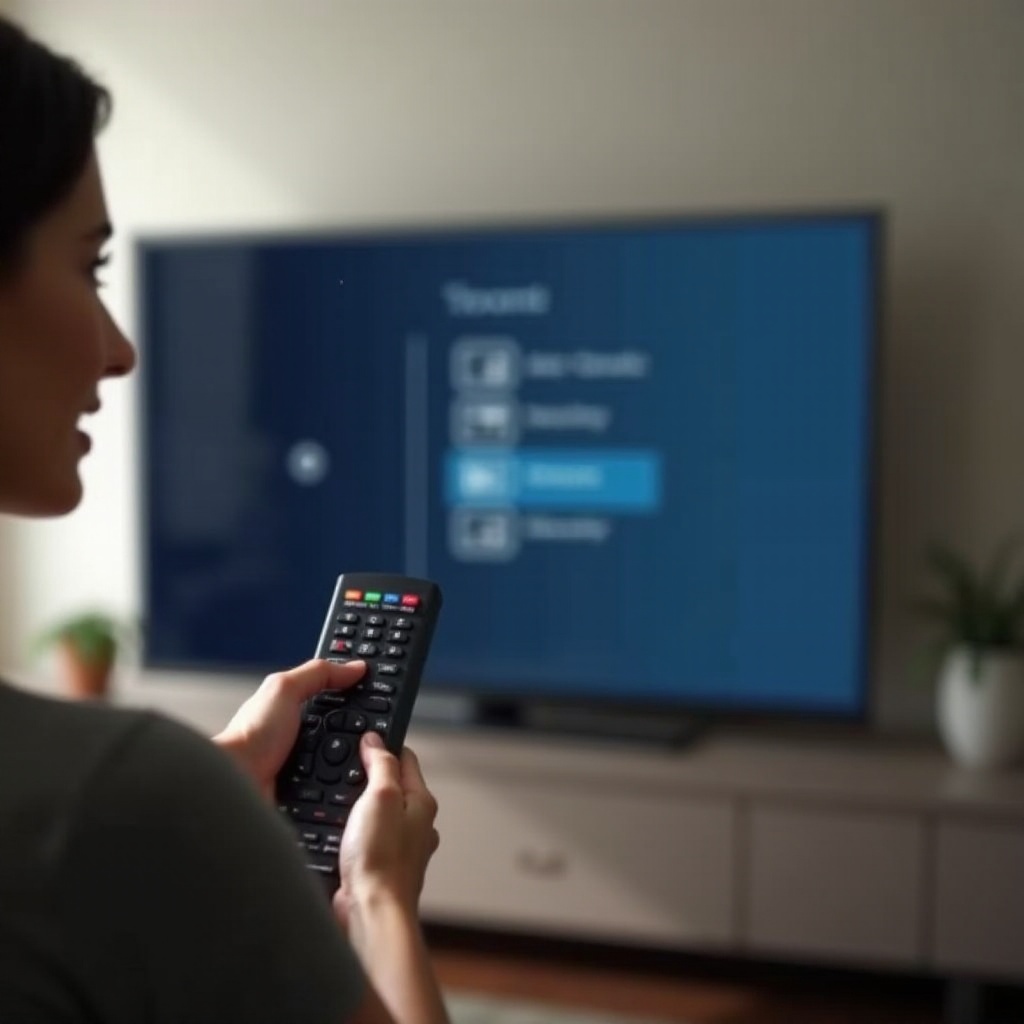
- Press the ‘Menu’ button on your Vizio remote control.
-
Navigate to the ‘Picture’ option using the arrow keys.
-
Locate the Brightness Setting:
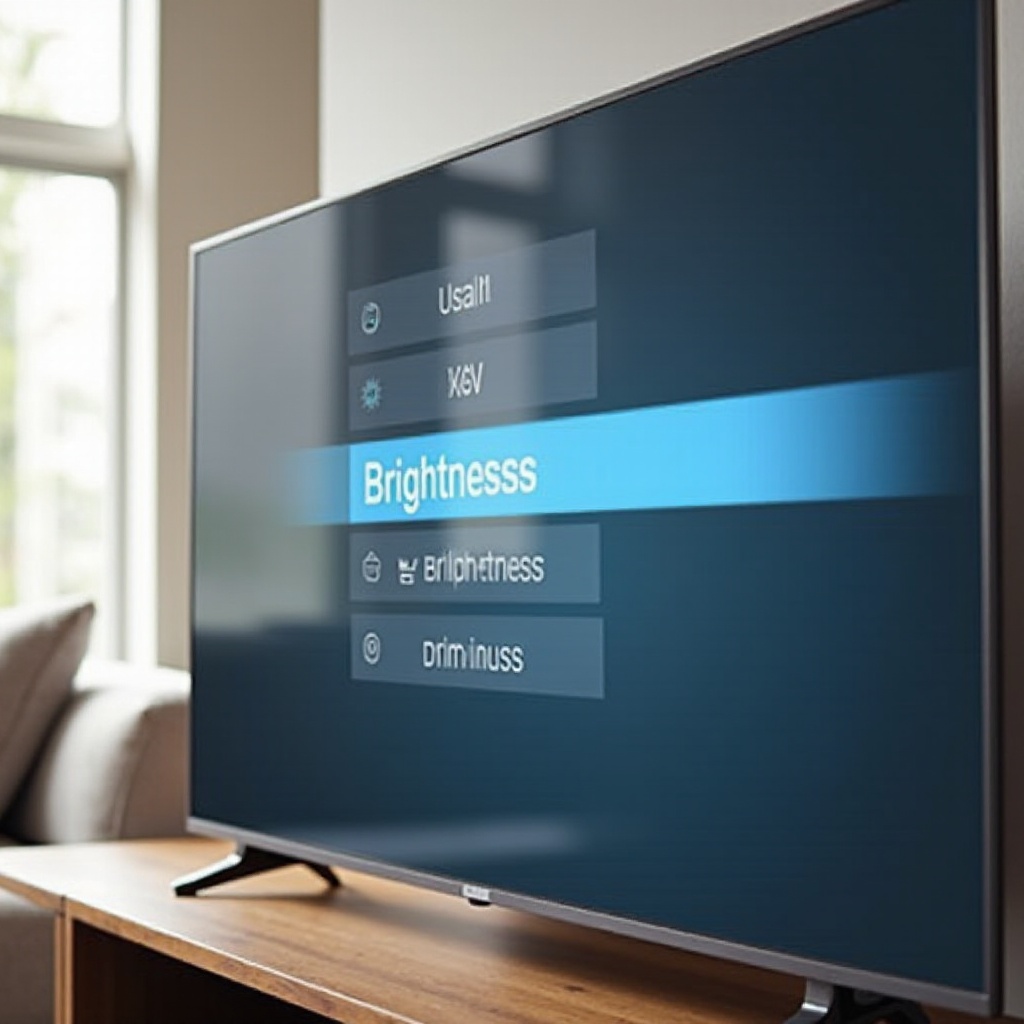
- Within the ‘Picture’ menu, find the ‘Brightness’ option.
-
Use the arrow keys to select it.
-
Adjust the Brightness:
- Once in the brightness menu, adjust the level by using the left and right arrows.
-
Increase the brightness if the picture is too dark; decrease it if it’s too light.
-
Save Your Settings:
- After adjusting, confirm and save the new settings.
- Exit the menu by pressing the ‘Exit’ button on your remote.
These steps ensure you can easily set the brightness to your preference, enhancing your overall viewing experience.
Exploring Advanced Brightness Features
Vizio TVs come equipped with advanced features to further refine picture quality. While you may have adjusted the manual settings, exploring these features can offer even more customization.
-
Local Dimming: This feature enhances contrast by dimming specific screen areas, resulting in deeper blacks. Find this option in the ‘Advanced Video’ section of the menu.
-
Backlight Control: Adjusting the intensity of the TV’s backlight can improve visibility in bright rooms. Increasing backlight settings may be necessary during the day or in sunlit rooms.
-
Ambient Light Sensor: This feature automatically adjusts brightness based on room lighting. Activate this in the settings if you prefer automatic adjustments or deactivate it for consistent settings.
By leveraging these advanced features, you can fine-tune your Vizio TV for the ultimate viewing experience regardless of the environment.
Common Brightness Adjustment Issues and Solutions
Even with straightforward settings, you might encounter issues while adjusting brightness. Let’s explore potential problems and their solutions.
- Brightness Resets Unexpectedly:
-
Power interruptions might cause this issue. Ensuring your TV firmware is updated can mitigate interruptions and stabilize settings.
-
Brightness Adjusts Automatically:
-
The active Ambient Light Sensor could be causing these unwanted changes. Try disabling this feature if automatic adjustments are disrupting your experience.
-
Inconsistent Picture Quality Across Inputs:
- Different devices may have different optimal settings. Adjust brightness settings for each input source to maintain a consistent viewing experience.
By addressing these common issues, you can maintain crisp and consistent picture settings across various ongoing scenarios.
Tips for Optimizing Picture Quality
Quality picture settings can significantly impact your enjoyment. To ensure you’re getting the best out of your Vizio TV, consider these additional tips:
-
Calibrate Regularly: Perform periodic calibrations of your TV settings to correspond with changes in room lighting and the type of content you’re viewing.
-
Use Picture Modes: Leverage Vizio’s predefined picture modes such as ‘Game,’ ‘Movie,’ or ‘Sports.’ These modes automatically tweak settings to complement specific content types for an optimized experience.
-
Consult User Manuals: Refer to your Vizio TV user manual. It can serve as an essential resource for personalized settings recommendations often overlooked.
Implementing these tips ensures high-quality visual performance and elevates your overall enjoyment from watching your favorite shows and movies.
Conclusion
Adjusting the brightness on your Vizio TV is a crucial step towards achieving the best picture quality. By understanding the available settings and making thoughtful adjustments, you can enjoy your favorite content with improved visibility and color accuracy. Incorporating advanced features and following the outlined tips ensures an optimized viewing experience tailored to your needs.
Frequently Asked Questions
How can I reset the brightness settings on my Vizio TV?
To reset the brightness settings on your Vizio TV, go to the ‘Picture’ menu, and select ‘Reset Picture Mode.’ This will restore all picture settings, including brightness, to their default values.
Why is my Vizio TV’s brightness adjusting automatically?
If your TV’s brightness changes automatically, the Ambient Light Sensor might be active. This feature adjusts brightness based on room lighting conditions. You can disable it in the advanced settings to maintain a consistent brightness level.
Are there specific modes for watching different types of content?
Yes, Vizio TVs offer several picture modes such as ‘Standard,’ ‘Game,’ ‘Movie,’ and ‘Sports.’ Each mode optimizes brightness and other settings for specific types of content, enhancing your viewing experience.