
Introduction
Choosing top-notch peripherals for your Steam Deck can significantly enhance your gaming experience. Many gamers often overlook the importance of a good mouse and keyboard, focusing solely on the device. However, selecting the right peripherals can transform your gaming performance from average to exceptional. In this guide, we navigate through the essential features and options for gamers eager to upgrade their Steam Deck setup.
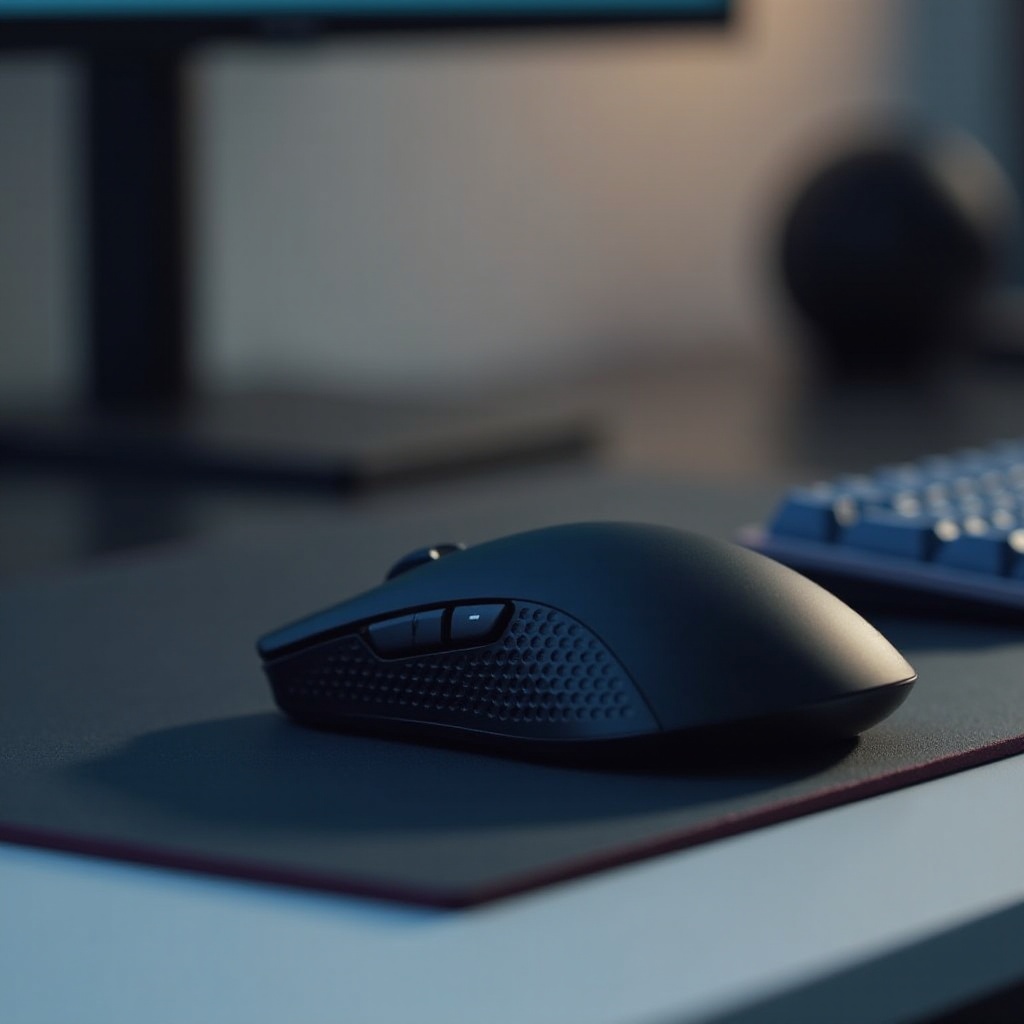
Why the Right Mouse and Keyboard Matter for Steam Deck
Selecting high-quality peripherals enhances precision, comfort, and overall control, allowing for prolonged gaming sessions without discomfort. The Steam Deck, known for its portable design, gains enhanced versatility with the addition of well-chosen peripherals. Whether it’s the precise click of a mouse or the tactile feedback of a mechanical keyboard, your choice of peripherals can optimize response time and accuracy, setting you on the path to success.
Top Mouse Picks for the Steam Deck
Choosing the right mouse involves reviewing several high-quality options available on the market.
- Logitech G Pro Wireless: Praised for its lightweight and cutting-edge sensor, this wireless mouse ensures smooth, uninterrupted action during gameplay.
- Razer Viper Ultimate: This is a top pick for gamers seeking a lightweight, ultra-responsive sensor and a prolonged battery life for extended sessions.
- SteelSeries Rival 650: Known for dual wireless connectivity, customizable weights offer unmatched control during intense gaming.
Each of these options is designed to augment your gameplay, offering unique features that cater to varying gaming styles.
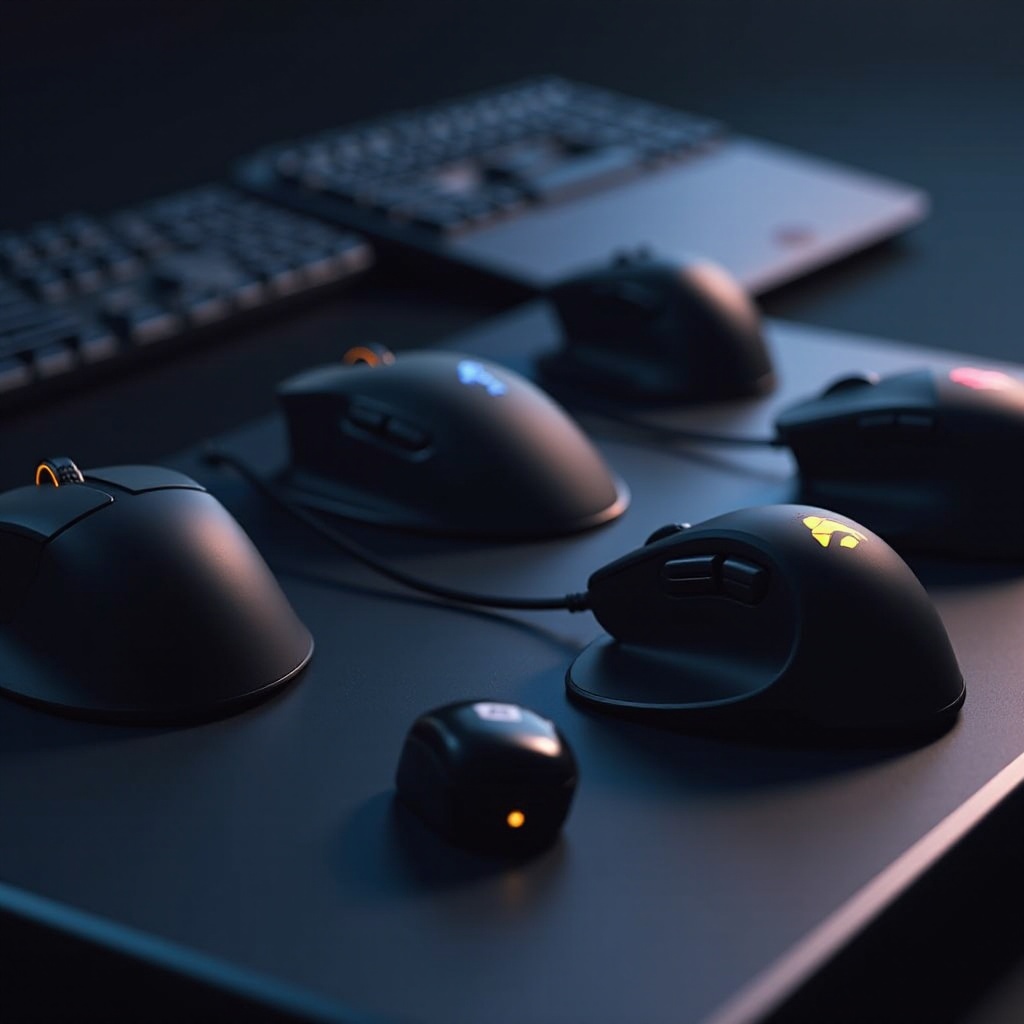
Key Features to Look for in a Gaming Mouse
Understanding the key features of a gaming mouse is essential to finding the perfect match.
- DPI and Sensitivity: High-DPI settings facilitate quick movements, but mice with customizable settings offer flexibility across different games.
- Wired vs. Wireless: Consider whether you prefer the uninhibited movement of wireless or the consistent connection of wired options.
- Ergonomics and Comfort: Opt for a mouse that supports long-duration gameplay with a comfortable fit and proper hand support.
By identifying these features, gamers can ensure the mouse they choose fits seamlessly into their play style, enhancing efficiency and enjoyment.
Top Keyboard Picks for the Steam Deck
A well-chosen keyboard can significantly impact your gaming experience.
- Razer BlackWidow Mini Hyperspeed: Compact and efficient, this wireless keyboard boasts excellent performance and portability.
- Logitech G915 TKL: This stylish keyboard, with low-profile switches and superior battery life, merges design and functionality perfectly.
- Corsair K65 RGB Mini: Delivering high performance with mechanical keys, this compact option is ideal for gamers on the move.
These keyboards not only add to the aesthetic appeal of your setup but provide the tactile response vital for gaming at peak potential.
Key Features to Look for in a Gaming Keyboard
Considering these crucial features will assist in selecting the ideal gaming keyboard.
- Mechanical vs. Membrane Switches: Mechanical switches offer longevity and tactile feedback, while membrane keyboards provide quieter typing.
- Size and Portability: Compact designs enhance portability, making them perfect for Steam Deck users.
- Backlighting and Customization: Customizable lighting enhances appearance and aids visibility in low-light conditions.
By focusing on these features, users can select a keyboard tailored to their specific gaming needs.
How to Connect Your Mouse and Keyboard to the Steam Deck
Connecting peripherals to the Steam Deck is straightforward and varies slightly based on the connection type.
- Wired Connections: Use a USB-C hub to connect wired mice and keyboards, ensuring a stable connection.
- Bluetooth Pairing: For wireless peripherals, activate pairing mode and connect through the Steam Deck’s Bluetooth settings.
- Using USB-C Hubs: Hubs expand connectivity options, supporting a mixture of peripheral types.
Ensuring proper connectivity allows your setup to perform seamlessly, enhancing mobility when needed.
Tips for Optimizing Gameplay with Your New Peripherals
Maximize the capabilities of your new peripherals by adopting these strategies:
- Customizing Controls: Adjust game settings to utilize additional buttons and features effectively.
- Software for Optimization: Employ software from manufacturers for firmware updates and advanced configurations.
- Maintenance and Care: Regular maintenance is key to preserving optimal performance and prolonging the lifespan of your devices.
Implementing these tips not only enhances hardware effectiveness but also contributes to a richer gaming experience.
Conclusion
In conclusion, the right choice of mouse and keyboard is crucial for elevating your Steam Deck gaming journey. Superior peripherals provide increased control, comfort, and connectivity, allowing players to extract the maximum potential from every session. By emphasizing key features and customization, users can align their setups perfectly with their gaming preferences.
Frequently Asked Questions
Can I use any mouse and keyboard with the Steam Deck?
Yes, as long as the peripherals are compatible with USB or Bluetooth connections.
How do I ensure my mouse and keyboard are optimized for gaming?
Customize game settings and regularly update peripheral software for optimal performance.
What if my peripherals are not connecting to the Steam Deck?
Check connectivity options, ensure devices are in pairing mode, and use a USB-C hub if necessary.