Introduction
Using multiple monitors can significantly amplify productivity, allowing seamless multitasking and improved user experience. Whether you’re managing complex workflows, gaming, or creating digital content, having a computer that supports three monitors can be transformative. This guide delves into the hardware essentials, top-performing models, and strategic configuration tips that make multi-monitor setups truly effective.
Understanding the Hardware Requirements
Before selecting your computer, it’s crucial to acknowledge the hardware needed for a stable and efficient three-monitor setup.
-
Graphics Card Essentials: At the core of any multi-monitor system is the graphics card. It needs to support multiple outputs (such as HDMI, DisplayPort, or DVI) and have the capacity to run three displays simultaneously without sacrificing performance.
-
CPU and RAM Requirements: The processor and memory significantly impact how tasks are handled. A quad-core processor is recommended to process multiple applications efficiently, while 16GB of RAM is the minimum to maintain smooth performance across three monitors.
-
Choosing the Right Motherboard: Ensure the motherboard supports your chosen graphics card and processor. It should have enough PCIe slots for potential future upgrades and include adequate I/O options for all peripherals.
With these hardware fundamentals in mind, we can now explore some of the best computers that are designed for supporting three monitors.
Top Computer Models for Triple Monitor Setups in 2024
Selecting the right computer model makes all the difference in achieving a successful multi-monitor setup. Here are top models to consider:
-
High-Performance Systems: For those demanding top-tier performance, options like the Dell XPS Desktop or the HP Omen series provide the necessary power and graphics capabilities for seamless operations, from intensive tasks to gaming.
-
Budget-Friendly Options: If you’re looking to maximize value, the Acer Aspire TC or HP Pavilion series offer reliable performance for everyday computing and support multi-monitor arrangements without hefty costs.
-
Best for Creative Professionals: For the creative professionals requiring high color accuracy and processing power, Apple’s Mac Studio and Microsoft’s Surface Studio lead the market, tailored specifically for design and video tasks.
Choosing a suitable computer sets you up for success. Now, let’s discuss how to properly configure your workstation for maximum productivity.
Setting Up Your Multi-Monitor Configuration
After selecting the right computer, setting up your monitors correctly is crucial for optimizing productivity.
-
Proper Monitor Alignment: Arrange your monitors to reduce strain and enhance workflow. Place the primary monitor centrally, with secondary monitors angled to encircle your workspace, allowing natural head movement.
-
Software Tools for Management: Utilize management software for better window arrangement across screens. Programs like DisplayFusion or Windows’ native snapping feature make managing windows easier and enhance user experience.
-
Connectivity Tips and Tricks: Ensure all monitors are securely connected, using the appropriate ports. Adjust the OS display settings to extend the desktop, facilitating smooth transitions of windows and applications between screens.
Configuring your setup effectively enhances your computing experience. With this in place, let’s explore some best practices for getting the most from your multi-monitor environment.
Best Practices for Productivity with Three Monitors
To truly harness the potential of a three-monitor setup, certain best practices should be followed:
-
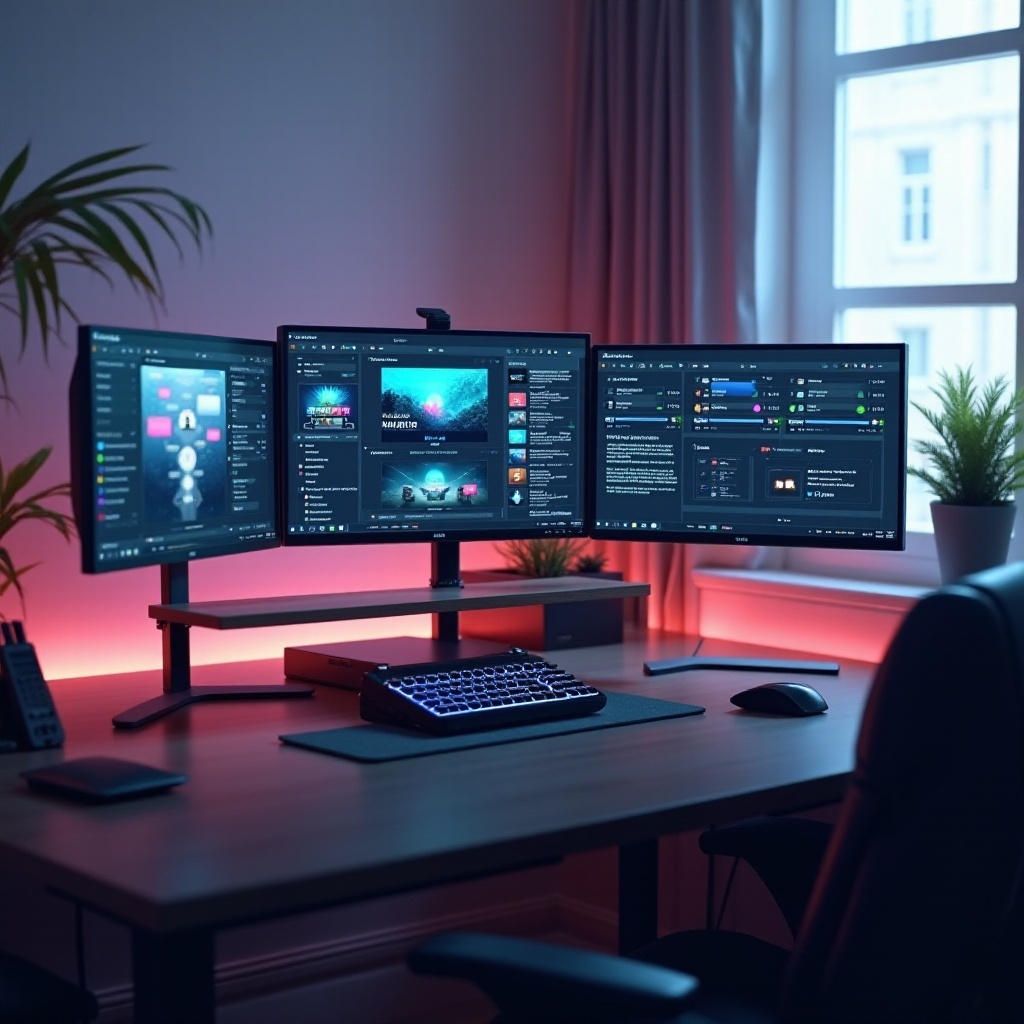
Ergonomics and Arrangement: Ensure that your monitors are positioned at eye level and an appropriate distance to avoid strain. Ergonomic stands or arms can help adjust the monitors for optimal posture.
-
Software Optimization: Tailor your software settings to exploit the full potential of your setup. Organize taskbars across monitors and establish efficient app placements to maintain a streamlined workflow.
-
Common Troubleshooting Issues: Be ready to address typical issues like display flicker or resolution mismatches. Routine checks on driver updates can preempt many problems, and don’t hesitate to consult manufacturer guides for persistent issues.
Embracing these best practices helps you unlock the full potential of your multi-monitor system, enhancing both efficiency and comfort.
Conclusion
Supporting three monitors with a single computer revolutionizes your digital workspace, enhancing both productivity and user pleasure. By choosing the right equipment, configuring it carefully, and adopting effective practices, you can dramatically improve your efficiency and computing experience. With these insights, you’re well-equipped to transform your workspace and fully leverage the benefits that a multi-monitor setup offers.
Frequently Asked Questions
What specifications should a computer have to support three monitors?
Ensure your computer has a suitable graphics card with multiple outputs, a strong CPU, adequate RAM, and a compatible motherboard to support a multi-monitor setup.
Can laptops support three external monitors?
Yes, many modern laptops can support multiple monitors with the help of docking stations or adapters that expand the number of available video outputs.
What are the best practices for arranging three monitors?
Position your primary monitor directly in front, with secondary monitors angled towards you. Use monitor arms or stands to adjust height and distance for optimal ergonomics.